Settings
 Fast Delivery
 Payment Types


 Marketplace Product

Analog Speed or Volume Meter With Arduino
License: GNU Lesser General Public License Displays Microcontrollers Arduino ESP32
We will learn how to make a Volume or Speed analog meter using the OLED display and Arduino. This can be a great, simple Indicator of any analog source.
Watch the Video!
Learn more about Visuino: What is Visuino
What You Will Need
Arduino Uno or any other Arduino board
Visuino software: Download here

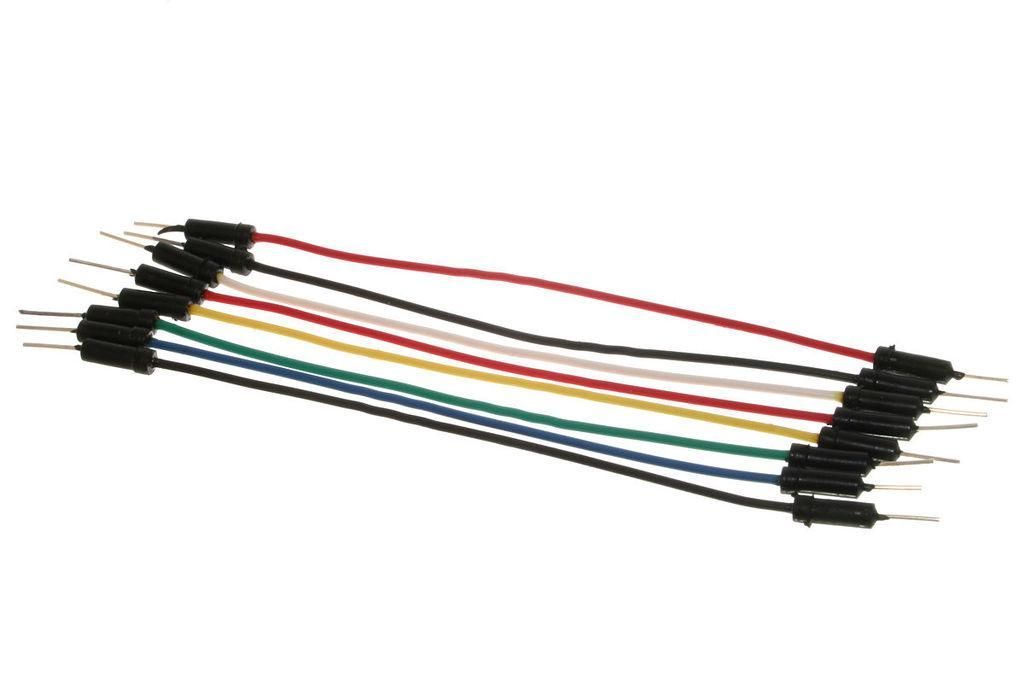
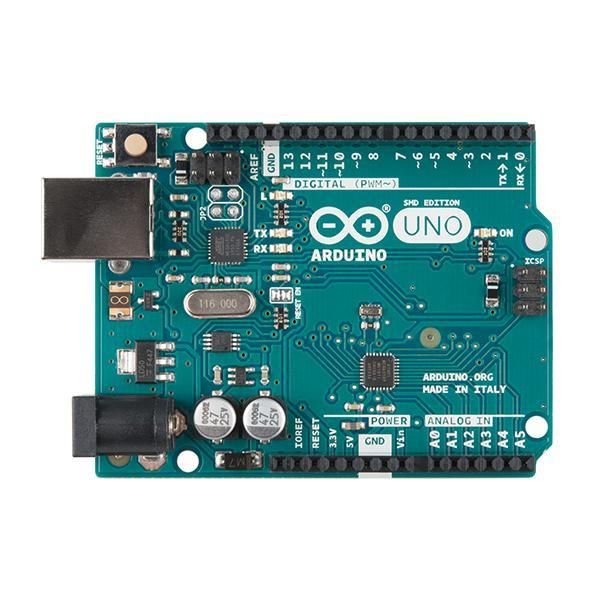
The Circuit
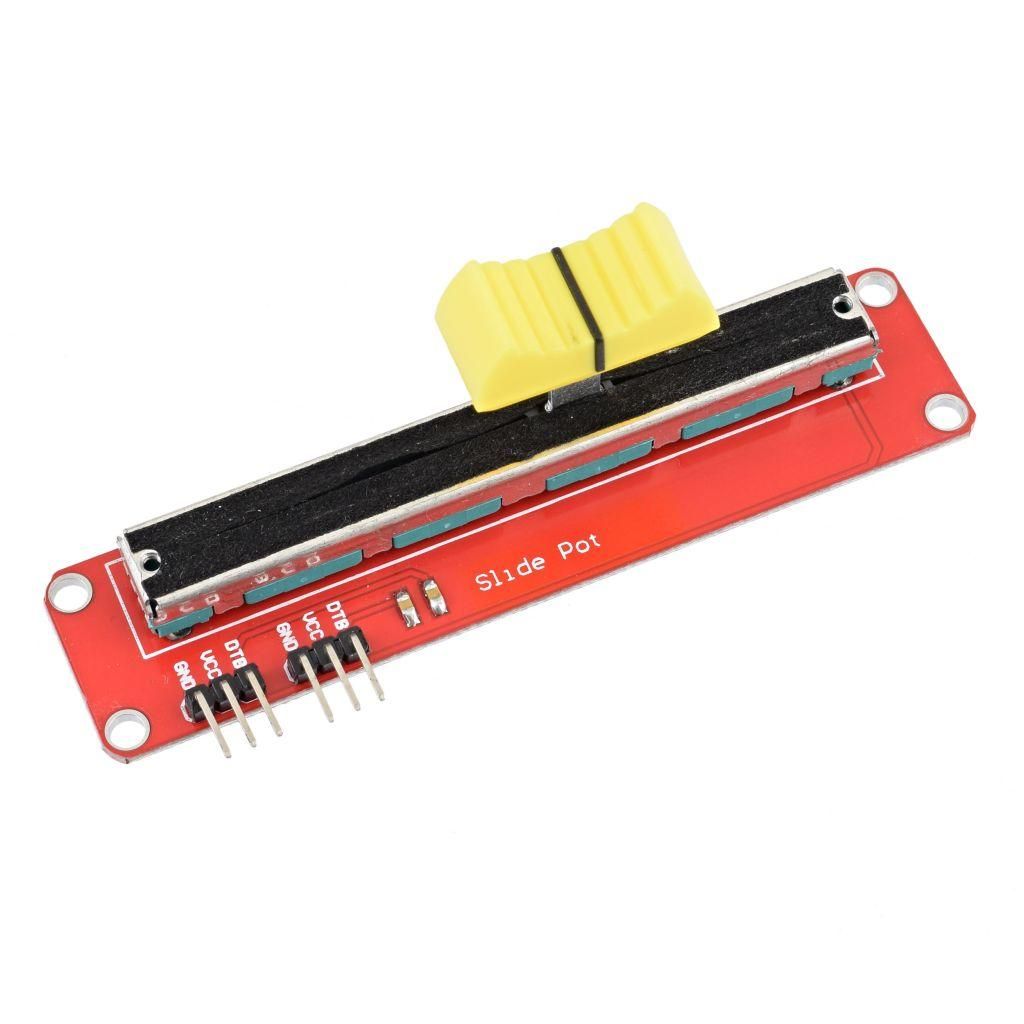
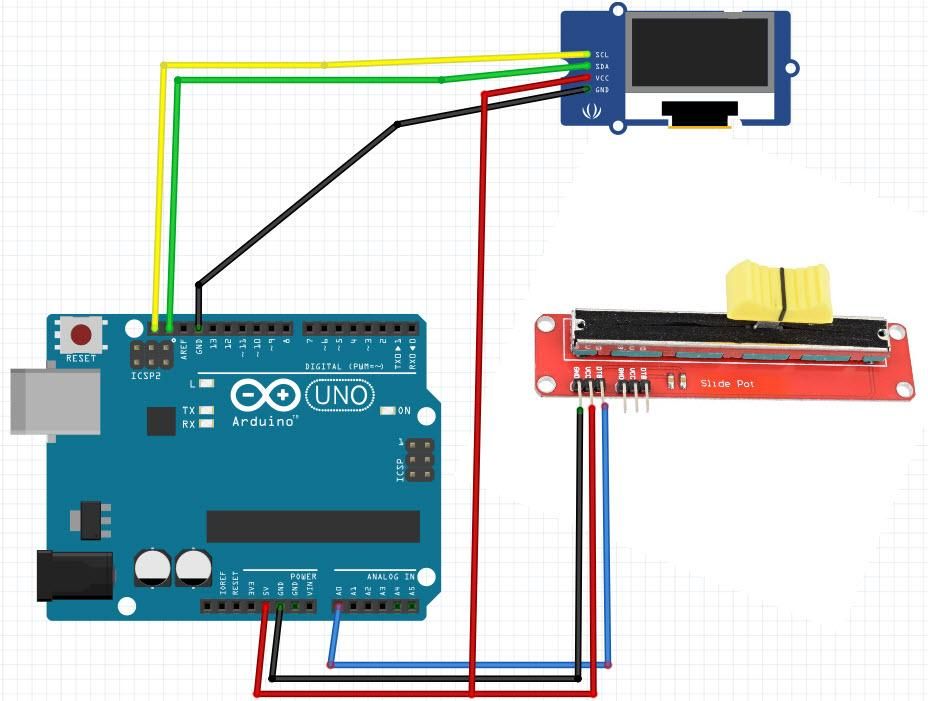
Connect potentiometer pin [DTB] to arduino analog pin [A0]
Connect potentiometer pin [VCC] to arduino pin [5V]
Connect potentiometer pin [GND] to arduino pin [GND]
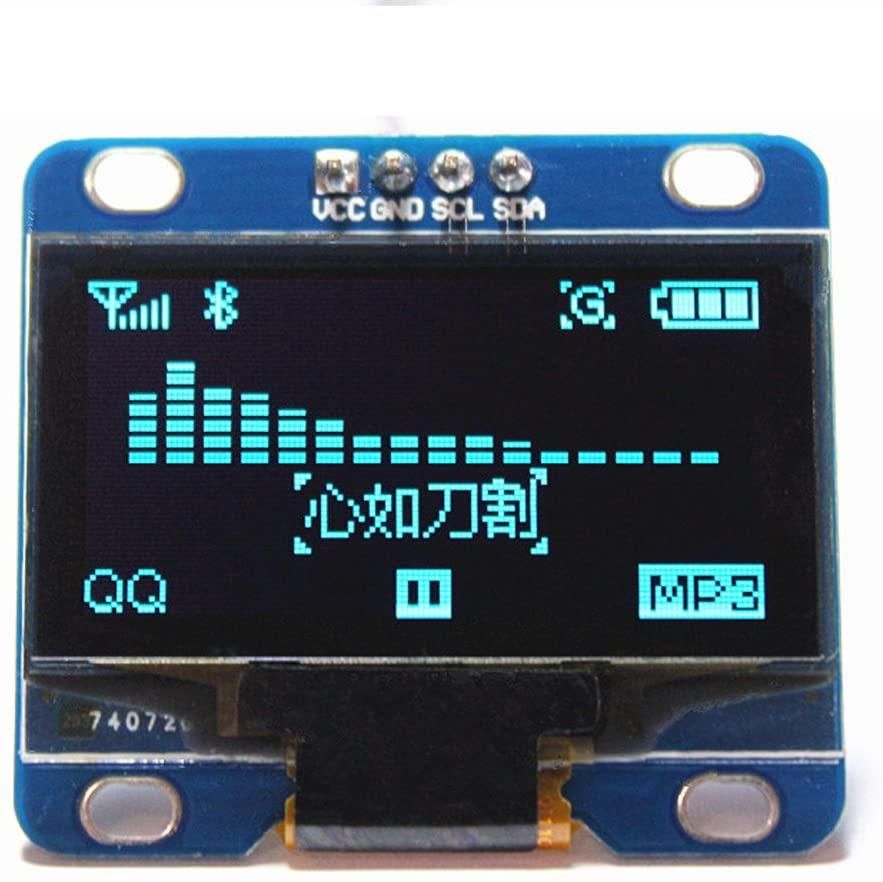
Connect OLED display pin [VCC] to arduino pin [5V]
Connect OLED display pin [GND] to arduino pin [GND]
Connect OLED display pin [SDA] to arduino pin [SDA]
Connect OLED display pin [SCL] to arduino pin [SCL]
Start Visuino, and Select the Arduino UNO Board Type
The Visuino: https://www.visuino.eu also needs to be installed. Download the free version or register for a Free Trial.
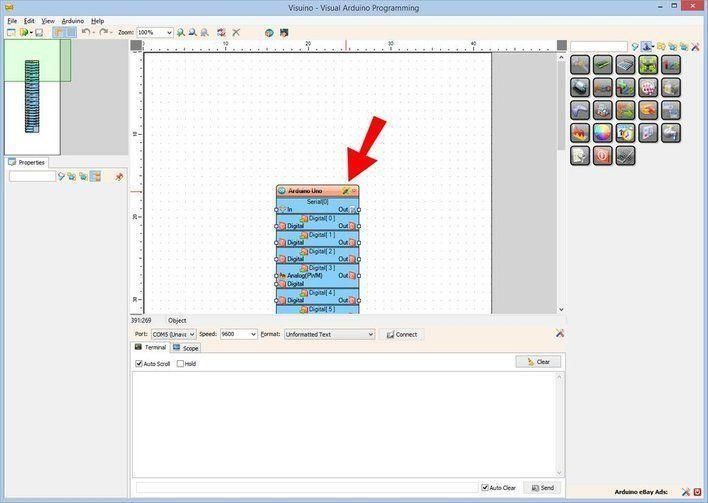
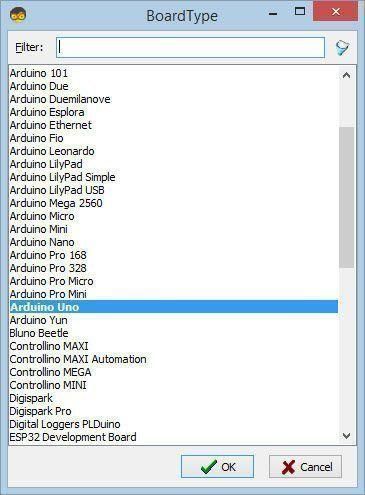
Start Visuino as shown in the first picture. Click on the "Tools" button on the Arduino component (Picture 1) in Visuino When the dialog appears, select "Arduino UNO" as shown on Picture 2
In Visuino Add & Set Components
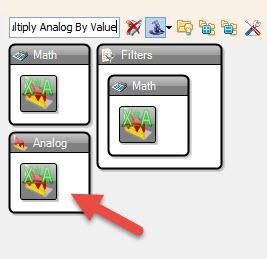
Add "Multiply Analog By Value" component
In the properties window set Value to 100
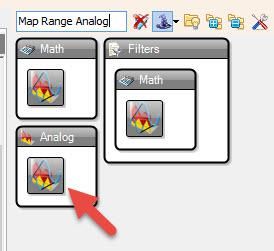
Add "Map Range Analog" component
In the properties window set Output Range Max to 0 and Output Range Min to -180
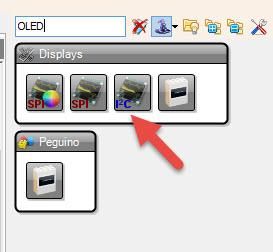
Add "OLED display" component
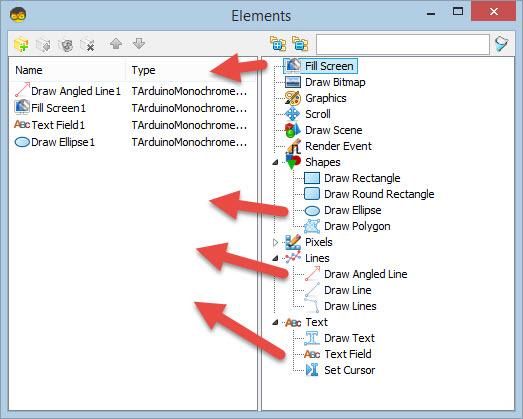
Double click on the DisplayOLED1 and in the Elements window:
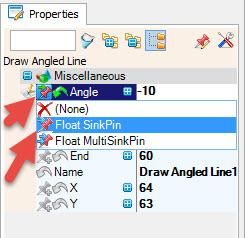
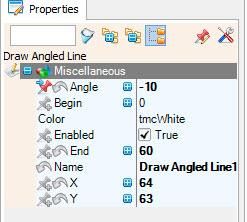
drag "Draw Angled Line" to the left side and in the properties window set Angle to -10, End to 60, X to 64, Y to 63, select angle and click on the pin icon and select Float Sink pin
drag "Fill Screen" to the left side
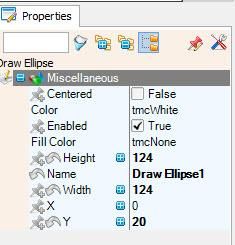
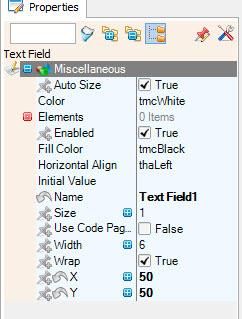
drag "Text Field" to the left side and in the properties window set X to 50 and Y to 50 drag "Draw Ellipse" to the left side and in the properties window set Height to 124, Width to 124 and Y to 20
Close the Elements window
In Visuino Connect Components
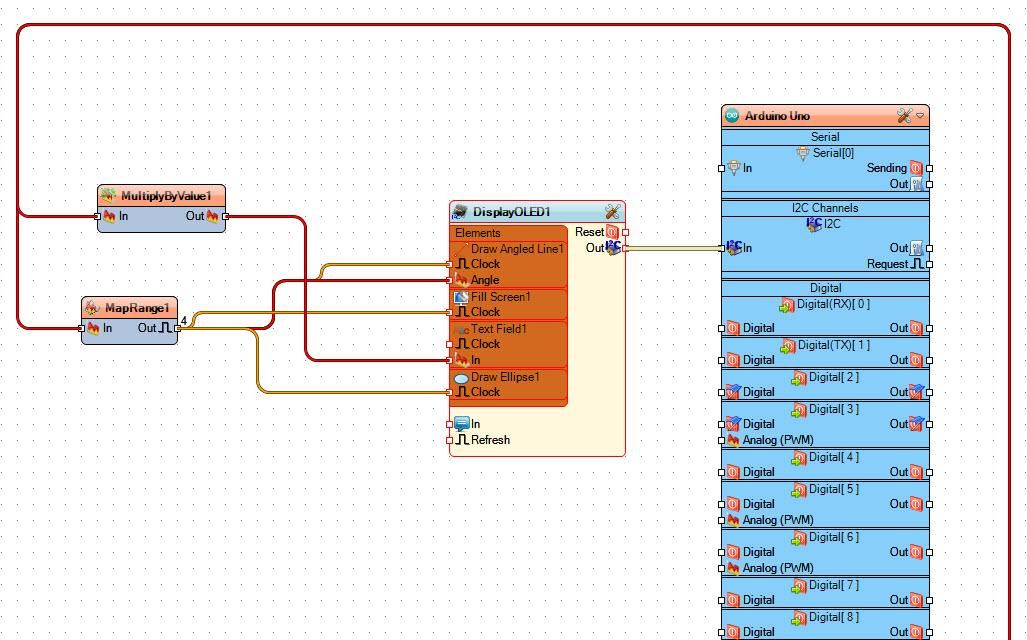
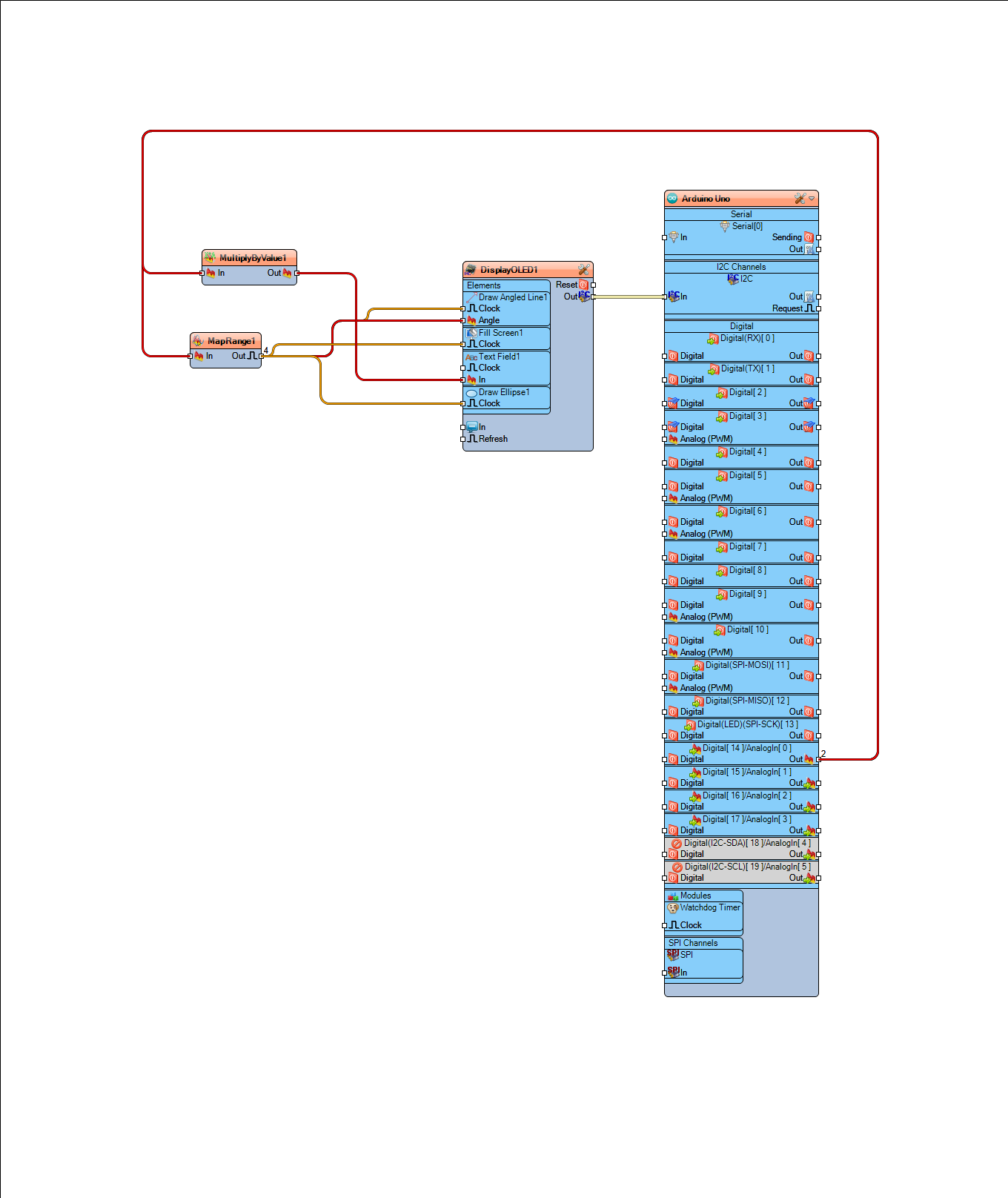
First Connect Arduino Analog pin 0 to MapRange1 pin In
Connect Arduino Analog pin 0 to MultiplyByValue1 pin In
Connect MapRange1 pin Out to DisplayOLED1 Fill Screen1 pin Clock
Connect MapRange1 pin Out to DisplayOLED1 Fill Draw Ellipse1 pin Clock Connect MapRange1 pin Out to DisplayOLED1 Draw Angled Line1 pin Angle
Connect MapRange1 pin Out to DisplayOLED1 Draw Angled Line1 pin Clock
Connect MultiplyByValue1 pin Out to DisplayOLED1 Text Field1 pin In
Connect "DisplayOLED1" pin I2C Out to Arduino pin I2C In
Generate, Compile, and Upload the Arduino Code
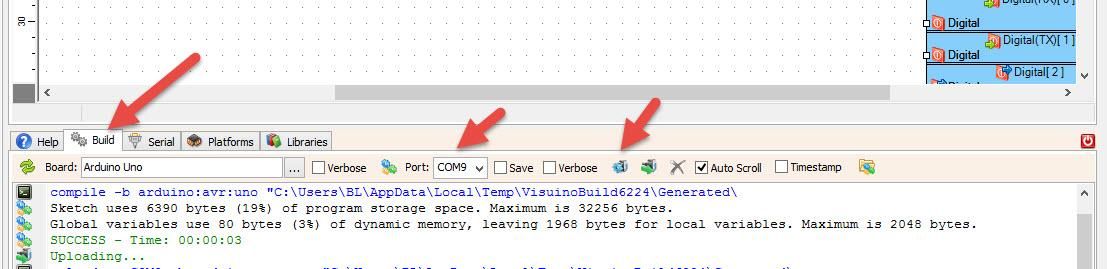
In Visuino, at the bottom click on the "Build" Tab, make sure the correct port is selected, then click on the "Compile/Build and Upload" button.
Play
If you power the Arduino module and slide the potentiometer, the display will start to show different positions.
Congratulations! You have completed your project with Visuino. Also attached is the Visuino project that I created for this; you can download it and open it in Visuino: https://www.visuino.eu