Settings
 Fast Delivery
 Payment Types


 Marketplace Product

Arduino Connect Multiple I2C Devices
License: GNU Lesser General Public License Displays I2C / TWI Arduino ESP32
We will learn how to connect several modules with an I2C connection to arduino.
Watch the Video!
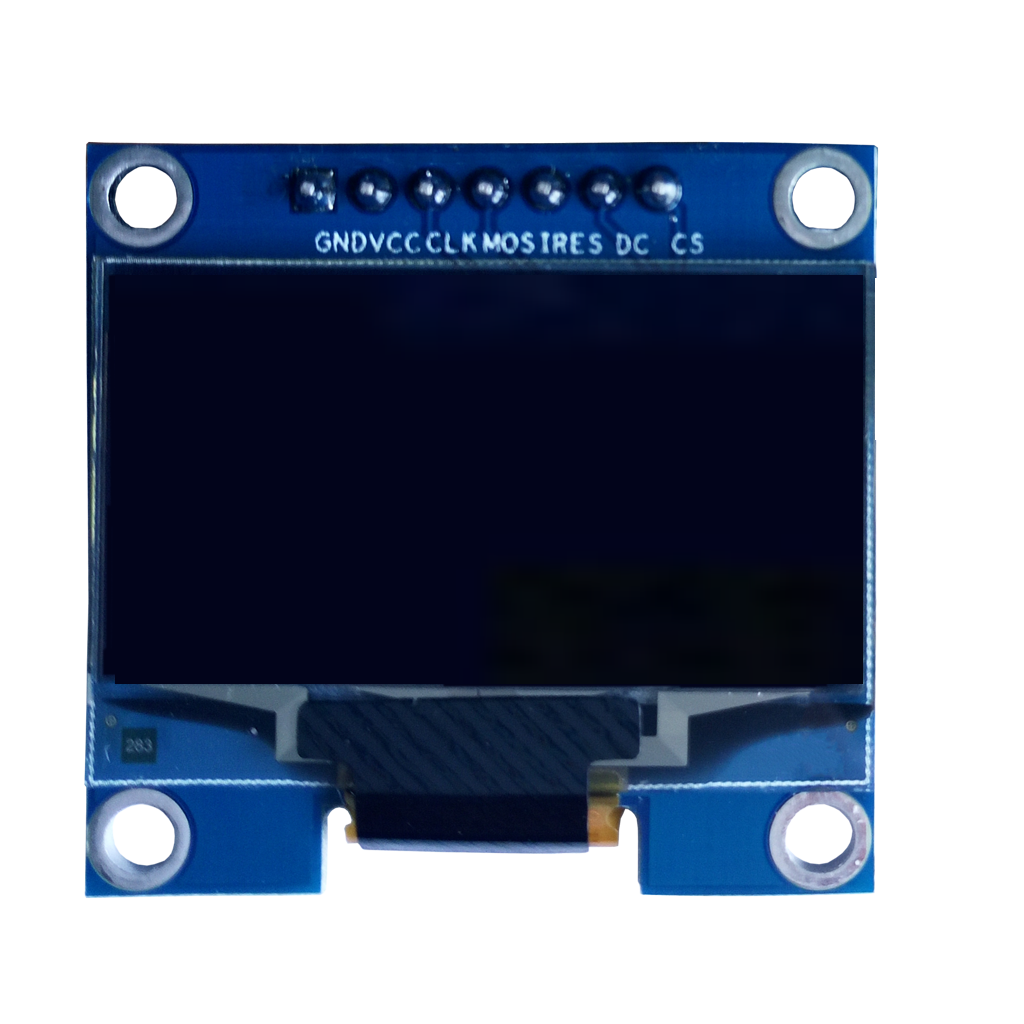
In our case, we will use 4 OLED displays as an example, but you can use any other I2C modules/sensors if you wish.
Note: 4 OLED displays consume a bit more memory; that's why we are using Arduino Mega to handle this, as Arduino UNO memory is lower. Choose your Arduino, ESP, etc., board according to your sensor/modules' memory consumption.
Learn more about Visuino: What is Visuino
What You Will Need
Arduino Mega 2560 or any other Arduino board
Note: We are using Arduino Mega in this case because OLED displays consume more memory, and Arduino UNO would not be able to handle that. So choose your board according to your modules.4 OLED displays (or any number of other I2C modules)
Visuino software: Download here

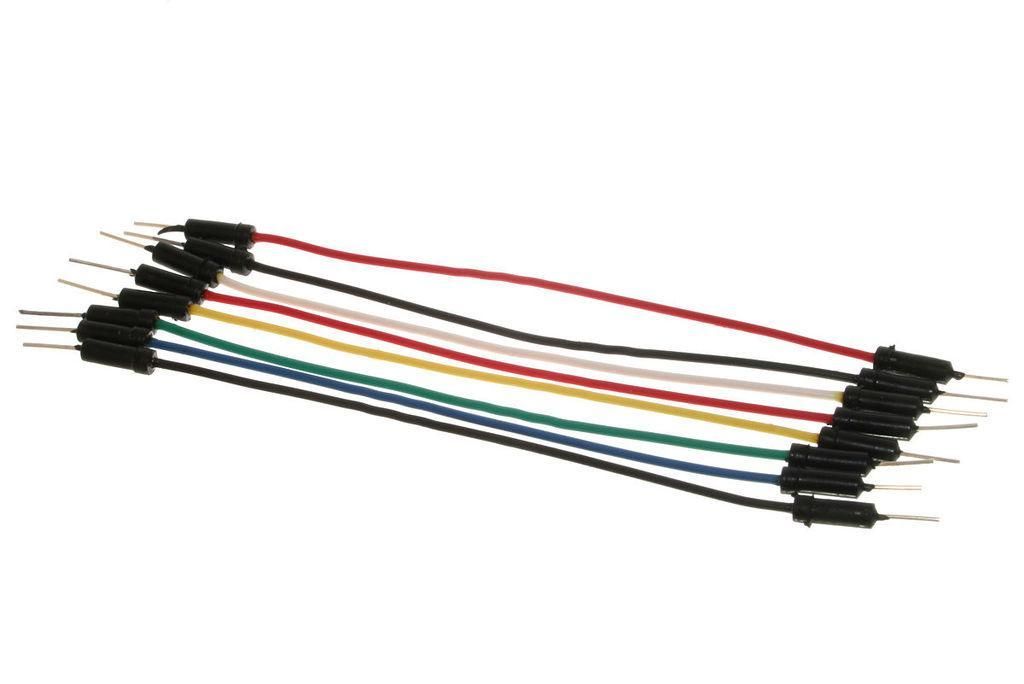
The Circuit
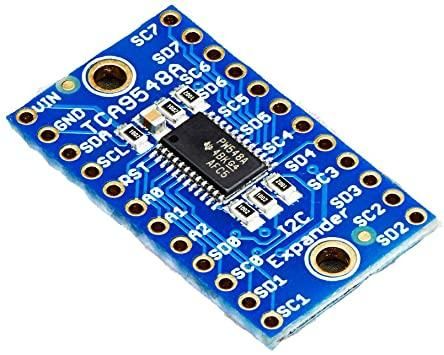
Connect TCA9548A pin SDA to Arduino pin SDA
Connect TCA9548A pin SCL to Arduino pin SCL
Connect TCA9548A pin VIN to Arduino pin 5V
Connect TCA9548A pin GND to Arduino pin GND
Connect OLED Display1 pin VCC to Arduino pin 5V
Connect OLED Display1 pin GND to Arduino pin GND
Connect OLED Display1 pin SDA to TCA9548A pin SD0
Connect OLED Display1 pin SCL to TCA9548A pin SC0
Connect OLED Display2 pin VCC to Arduino pin 5V
Connect OLED Display2 pin GND to Arduino pin GND
Connect OLED Display2 pin SDA to TCA9548A pin SD1
Connect OLED Display2 pin SCL to TCA9548A pin SC1
Connect OLED Display3 pin VCC to Arduino pin 5V
Connect OLED Display3 pin GND to Arduino pin GND
Connect OLED Display3 pin SDA to TCA9548A pin SD2
Connect OLED Display3 pin SCL to TCA9548A pin SC2
Connect OLED Display4 pin VCC to Arduino pin 5V
Connect OLED Display4 pin GND to Arduino pin GND
Connect OLED Display4 pin SDA to TCA9548A pin SD3
Connect OLED Display4 pin SCL to TCA9548A pin SC3

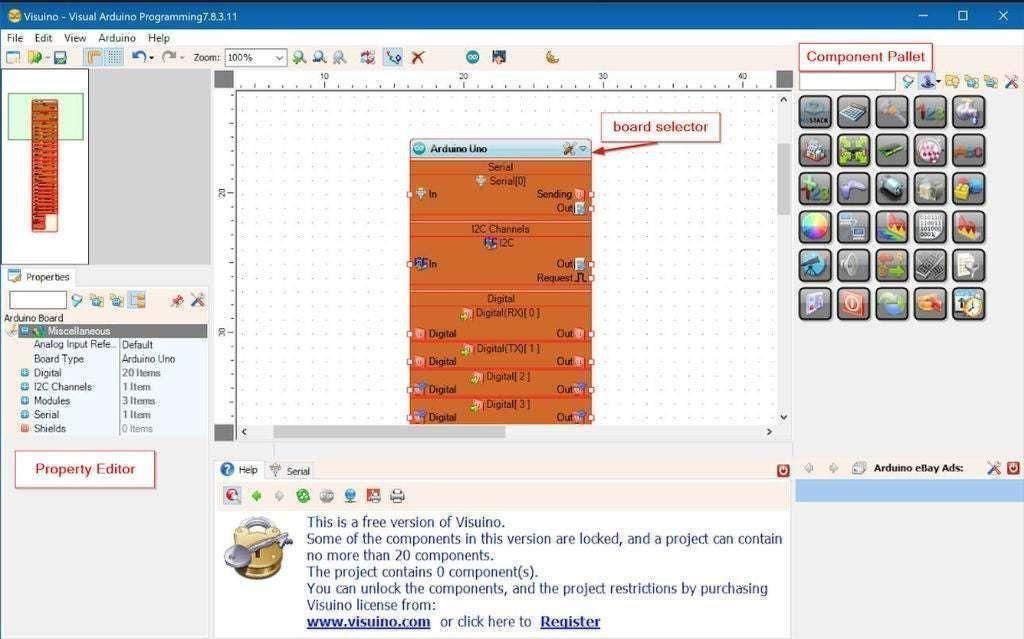
Start Visuino, and Select the Arduino MEGA Board Type
The Visuino: https://www.visuino.eu also needs to be installed. Download the free version or register for a free trial.
Start Visuino as shown in the first picture. Click on the "Tools" button on the Arduino component (Picture 1) in Visuino. When the dialog appears, select "Arduino Mega 2560" as shown in Picture 2.

In Visuino Add,Set & Connect Components
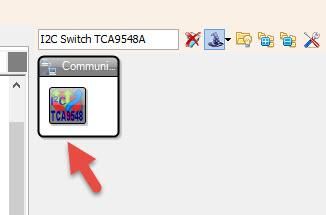
Add TCA9548A component
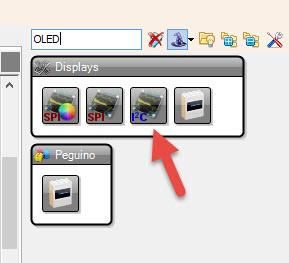
Add 4x OLED display components
Step1:
Select each OLED display component and, in the properties window, set width, height, and display type
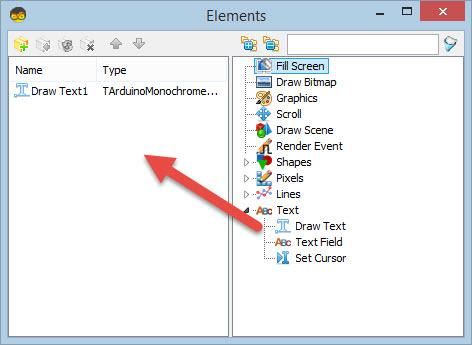
Double-click on the "DisplayOLED1" component and, in the Elements, drag "Draw Text" to the left side
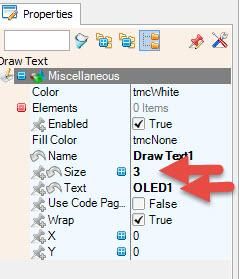
In the Properties window, set size to 3, text to OLED1
Close the Elements window.
Repeat Step 1 for other display components.
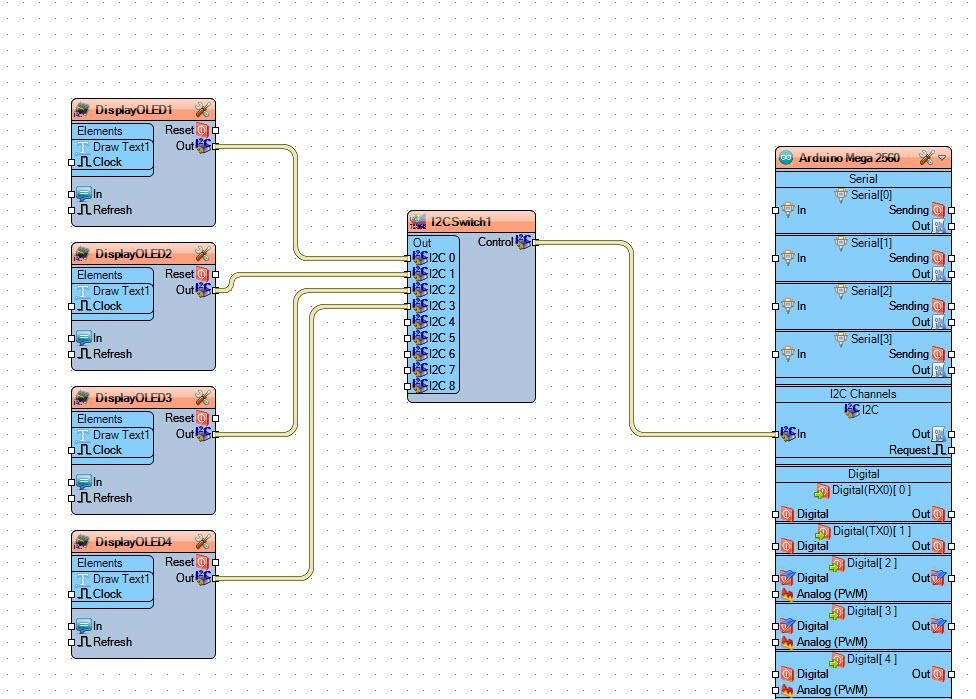
Connection:
Connect "DisplayOLED1" pin I2C Out to "I2CSwitch1" > I2C 0
Connect "DisplayOLED2" pin I2C Out to "I2CSwitch1" > I2C 1
Connect "DisplayOLED2" pin I2C Out to "I2CSwitch1" > I2C 2
Connect "DisplayOLED3" pin I2C Out to "I2CSwitch1" > I2C 3
Note: In case you are using other modules/sensors as well, then just connect their I2C pins the same way.

Generate, Compile, and Upload the Arduino Code
In Visuino, at the bottom, click on the "Build" tab, make sure the correct port is selected, and then click on the "Compile/Build and Upload" button.

Play
If you power the Arduino module, the OLED displays will start to show the text.
Congratulations! You have completed your project with Visuino. Also attached is the Visuino project that I created for this; you can download it and open it in Visuino: https://www.visuino.eu