Settings
 Fast Delivery
 Payment Types


 Marketplace Product

Mfr Part # H-705SFR-UV
HARD HAT 4PT RACHET SUS UV RED
3M

License: Attribution 3D Printing PPE
An earworm is a catchy song or tune that gets stuck in your head, often without warning. For us makers, I think the same thing happens with projects: once an idea takes hold, it keeps coming back until you build it. For me, this helmet is that project. Follow along, and you too can create a helmet that screams “LOOK AT ME!!!” and puts a smile on the face of everyone who sees it.
On the evening of September 8th, 2021, I was watching the Ask an Engineer livestream from Adafruit, during which they revealed their weekly cache of new products, one of which was a flashing red warning light.
I don’t know if the idea was subtly implanted by the way their guest, Jeff, was covering his ears expectantly, awaiting the sound of the warning light’s built-in siren, or if I had recently watched the Despicable Me 2 movie with my kids, but this is the moment the idea originated, and I knew what I had to do.
Although relatively simple, this project has gone through several iterations, especially following the helmet (sans costume) being used by my coworkers to attract attention during our attendance at the FRC Worlds competition this past spring.
I’ll showcase a couple of different designs, but feel free to personalize your design to your preferences.
Begin by removing the lens from the light – a slight twist will unlock it for you. With the lens removed, you will see two or three screws holding the PCB assembly to the base. Remove these screws and save them for assembly with the new base later.
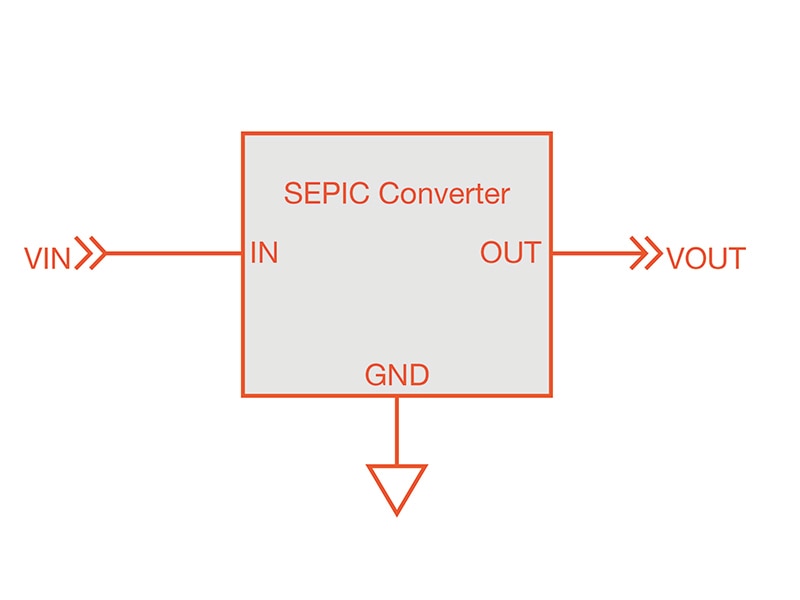
With the screws removed, you can lift the PCB assembly to gain access to the wires underneath. You will find 4 wires, two for power and two for the audio portion of the light. If you have the older version of the light, you will find a secondary small PCB (typically wrapped in yellow tape) connected to the incoming power wires. This small boost converter allowed the light to be powered from 3-12VDC; however, the newer version of the light does not come with this boost converter installed and therefore requires a 12VDC supply. With the lights I used for this project, I also found the older version had a green knob for volume adjustment, while the newer version has a red knob.
Whether you are working with the new or old style lights, you should remove the wires from the PCB that go to the potentiometer and the piezo buzzer. You can either cut them where they attach to the PCB or desolder them.
The PCB assembly will now be free of the base, so you can remove it. Finish teardown of the base - remove the knob, potentiometer, piezo buzzer, screws, and nuts.
There is a center-tap inductor on the PCB assembly that is used to drive the buzzer; however, even with the buzzer removed, the oscillations of this inductor will still create a slight audible tone. Since we no longer need this in the circuit, and to make a completely quiet build, you should remove this inductor. It is also held in place with hot glue, but that will soften enough when you desolder the leads to allow removal of the component.
If you have the old-style light, you also need to remove the boost converter from the power leads.
Set aside the components you removed. Most of these you will just be able to add to your parts bin for other projects, but a few will be needed for later steps in this project.
All parts can be 3D printed without support using PLA and default print settings.
You will need to print a single drill guide, and for each light assembly, you will need:
1x base
1x wingnut
1x blank foot
2x magnet feet
2x spacers
Begin assembly by inserting a magnet into each magnet foot, followed by a 10mm screw.
Insert one of the nuts previously removed from the original light base into the hex-shaped hole in the bottom of the 3D-printed base, and insert one of the matching screws from the original base through the center hole of the 3D-printed base and nut, and tighten. Install the two magnet feet and the blank foot (using the same size 10mm screws as used for the magnet feet) using the other 3 holes in the base and M3 nuts as shown below. Align the feet so they all angle towards the center of the base, then tighten the blank foot, but leave the magnet foot nuts loose for now.
Crimp an M3 spade terminal onto each of the power leads for the light PCB assembly.
Place one lead under the nut for each magnet foot, then tighten. One really nice thing about the circuit design for this light is that it incorporates a bridge rectifier on the power input, so we don't have to be mindful of polarity; regardless of the connection polarity, the rectifier will route the positive and negative voltages appropriately.
Place the PCB assembly into the 3D-printed base and align the mounting holes, being mindful not to pinch or damage the power leads. Fasten the PCB to the base using the screws that held the PCB to the original base.
Install the lens on the new base and set the light aside. Repeat step 3 for each light assembly you will be using in your project.
Using the drill guide and the helmet, determine your preferred placement of the lights, being mindful of how much space each light will occupy, and mark the four holes with a marker. I created two designs for my helmets: the "Model M" with one light on top and one on each side, similar to the Minion design that inspired this build, and the "Glowhawk" design, in which all three lights are in a row along the centerline of the helmet.
"Glowhawk" design on the left and "Model M" design on the right
Drill a 1/4 inch hole where you marked the center of each light and for two of the 3 perimeter hole marks.
The center hole will be used with the wingnut we printed to help secure the lights in place and allow for quick and easy removal for transport or storage. Insert a shoulder screw into each of the other two holes you drilled for each light - these will contact the magnets on the light base to help hold it in place while also providing power. On the inside of the helmet, place a 3D-printed spacer followed by an M4 nut, but do not tighten yet.
Once all screws are installed in the helmet, determine your wiring layout, keeping in mind that each light will need both a positive and negative electrical connection, but due to each light's built-in bridge rectifier, we don't need to concern ourselves with polarity. Crimp an M4 spade connector to each end of the wires, and install them with the spade between the nut and spacer, then tighten the nut. Keep in mind the spacers are beveled, so they can be rotated to adjust the angle of the shoulder screw to ensure good contact between the screw head and the magnets on each light.
If you salvaged a boost converter from one of the older-style lights, you can reuse it here. If your lights did not include the converter, you can instead use one of the compatible boost converters linked below. Take your boost converter and solder on the input and output wires. Crimp an M4 spade terminal onto each of the output wires, and solder a USB breakout board to the input wires. Attach the output leads to one set of the helmet screws you previously wired, and find a convenient location in the helmet to hot glue the USB breakout board that will be used to power the helmet (slightly scouring the plastic where you plan to glue the USB connection will help the glue adhere). In my assembly, I found that a single boost converter was able to power three lights without issue, but if you add more lights to your helmet, you may want to reevaluate the load on the boost converter.
All that is left to do now is to place the lights onto the designated locations on the helmet, ensuring the magnet feet align and make contact with the head of the shoulder screws, insert one of the salvaged nuts into the 3D-printed wingnut, and tighten the wingnut into place. With all lights secured to the helmet, attach a 5V USB power source, and enjoy your ridiculous creation.
Some projects solve a real problem, while others teach a new skill or demonstrate a particular technology. And then there are projects like this one that exist simply because the idea gets stuck in your head and refuses to leave.
What started as a passing thought during an Adafruit livestream eventually became a helmet covered in flashing warning lights that attracts attention wherever it goes. Whether it is worn at a trade show, robotics competition, maker event, or parade, it never fails to spark conversations and get a few laughs.
One design feature that I am particularly happy with is how easy the lights are to remove. Thanks to the magnetic mounting system and printed wingnuts, each light can be detached in seconds for storage or transportation and then quickly reinstalled when it is time to once again become the most noticeable person in the room.
The best part is that the design is easy to customize. Add more lights, change the layout, choose a different helmet color, or incorporate it into a larger costume. Whether you choose the "Model M," the "Glowhawk," or create an entirely new design of your own, the end result is guaranteed to be delightfully ridiculous.
And honestly, isn't that what making is all about sometimes?